How to run dbt on Docker


How to configure a local dbt development environment for free

In this article, we will learn how to configure a local dbt development environment with the free dbt-core. In this context, we will use the free and open-source relational database management system PostgreSQL and Visual Studio Code as our IDE.


Why choose dbt?

dbt is a popular data transformation framework because anyone familiar with SQL can safely use it, and it supports multiple adapters including Databricks, PostgreSQL and Snowflake among others.

Unlike many alternative data transformation frameworks such as Matillion or Coalesce, which are low-code and GUI oriented, dbt is a code-first framework SQL focused. This means that you can write code using your favorite editor and run it against any database, or even easily migrate away from dbt to another tool.

dbt is available in 3 products: core, fusion and cloud. dbt core is a free and open-source framework, fusion provides additional features and cloud provides a hosted service. In this article, we will focus on dbt core.

Why use Docker?

Docker is a platform that allows to run applications in virtualized containers, providing safely isolated environments, infrastructure-agnostic deployments and portability.

Whether you are developing an application for personal use or business-critical solution for enterprise, technologies evolve and change, and Docker provides a way to test your code against different versions of software, libraries and frameworks.

What you will need?

  • Docker Desktop
  • Visual Studio Code
  • Local folder for your project files, including dbt models and PostgreSQL database

How to install and configure dbt-core and dbt-postgres with Docker?

  1. Download and install Docker Desktop https://www.docker.com/products/docker-desktop/

  2. Launch Docker Desktop.

  3. Launch Visual Studio Code and open your project folder.

  4. For PostgreSQL, we will download from existing Docker image.

    1. In Visual Studio Code, open a terminal window.

    2. Pull a PostgreSQL Docker image by running this command in the terminal:

      docker pull postgres:13
      

      Here you can specify another PostgreSQL version or "latest" if you prefer, but it is recommended to always target a version.

  5. For dbt, we will build our image with dbt-core and dbt-postgres from existing Python Docker image.

    1. Create a new file named Dockerfile in your project folder.

    2. Add the following content into the file:

      FROM python:3.13-slim
      
      # Install system dependencies including git
      RUN apt-get update && apt-get install -y \
          gcc \
          g++ \
          postgresql-client \
          libpq-dev \
          python3-dev \
          build-essential \
          git \
          && rm -rf /var/lib/apt/lists/*
      
      # Install dbt packages
      RUN pip install --no-cache-dir \
          dbt-core \
          dbt-postgres
      
      WORKDIR /usr/app
      
      CMD ["bash"]
      

      Again, you can choose a different version of Python. To see the available list of Python Docker images, visit this link https://hub.docker.com/_/python/

    3. Build the dbt image by running this command in the terminal:

      docker build -t dbt-image .
      

      If you are running on an ARM64 architecture, you need to add the --platform linux/amd64 flag to the build command, because dbt-postgres does not support that architecture.

      docker build --platform linux/amd64 -t dbt-image .
      
  6. Open Docker Desktop and look under "Images", you will see both images "postgres" and "dbt-image".

  7. Create your dbt profile configuration which will be used by dbt-core.

    1. Create a new file named .dbt/profiles.yml in your user home directory. On Windows, this is typically C:\Users\your_username\.dbt\profiles.yml.

    2. Add the following content into the file:

      your_dbt_project_name:
        outputs:
          dev:
            dbname: your_postgres_db_name
            host: postgres  # This is the service name in docker-compose
            password: your-postgres-password
            port: 5432
            schema: your_schema_name
            threads: 1
            type: postgres
            user: your-postgres-user
        target: dev
      

      Replace all the placeholders with your actual names and credentials.

  8. Create an environment file to declare credentials for your project.

    1. Create a file named .env in your project directory.

    2. Add the following content into the file:

      POSTGRES_DB=your_postgres_db_name
      POSTGRES_USER=your-postgres-user
      POSTGRES_PASSWORD=your-postgres-password
      

      Replace all the placeholders with your actual credentials.

  9. Create the containers to run the images for your project.

    1. Create a new file named docker-compose.yml in your project folder.

    2. Add the following content into the file:

      services:
        dbt:
          image: dbt-image  # Use your built dbt image
          volumes:
            - .:/usr/app
            - ${USERPROFILE}/.dbt:/root/.dbt  # Windows-friendly path
          working_dir: /usr/app
          depends_on:
            - postgres
          networks:
            - dbt-network
          stdin_open: true
          tty: true
      
        postgres:
          image: postgres:13  # Use your postgres image
          environment:
            - POSTGRES_DB=${POSTGRES_DB}
            - POSTGRES_USER=${POSTGRES_USER}
            - POSTGRES_PASSWORD=${POSTGRES_PASSWORD}
          ports:
            - "5432:5432"
          volumes:
            - postgres_data:/var/lib/postgresql/data
          networks:
            - dbt-network
      
      volumes:
        postgres_data:
      
      networks:
        dbt-network:
          driver: bridge
      
    3. Start the container by running this command in the terminal:

      docker compose up -d
      

      Confirm the container is running by running this command in the terminal, or simply looking at the list of containers on Docker Desktop:

      docker ps
      

      To stop the containers from running, run this command in the terminal:

      docker compose down
      

      Since the container has now been added to Docker Desktop, you can also start and stop the containers from there.

  10. Install the Visual Studio Code extension to manage your containers.

    1. Search for "Microsoft Dev Container" in the Visual Studio Code extensions marketplace, then install it.

    2. Open the "Containers" extension to see the list of containers through this extension, make sure Docker Engine is running.

    3. Right-click on your container to start it.

  11. We will now use dbt to initialize your project.

    1. Right-click on your "dbt-image" container and select "Attach Shell".

    2. From the terminal, run dbt init to initialize your project. dbt-core will add folders and files to your project. A sample of models will be created in your project.

      • Make sure your dbt_project.yml profile setting is mapped to the profile defined in your profiles.yml file.
        # This setting configures which "profile" dbt uses for this project.
        profile: 'your_dbt_project_name'
        
    3. Run dbt debug to check your connection.

    4. Run dbt build to materialize your models into tables on your PostgreSQL instance.

That's it, you have now created your dbt project and build your models into your database instance, all running in a Docker container.

How to run free LLM chat agent on VSCode?


Unleash the power of LLM agent on Visual Studio Code for personal use

With the advancement of LLM agents they've become an essential tool for developers to help debug and document code, and also to assist in design, build and review data solutions.

Visual Studio Code (VSCode) is a popular code editor that has gained popularity among developers due to its simplicity and ease of use. It easily integrates GitHub Copilot which is widely used by enterprise developers. However, quota limits the number of requests they can make to the LLM agents on the free tier. Individual developers may not want to commit to a paid subscription or may wish to consider alternatives.

In this article, we will explore how to run free LLM agents in VSCode.


What are the avaiable cloud LLM gateways for VSCode?

Multiple cloud LLM gateway platforms are available. Some of them are:

They all provide access to multiple LLM models, with some free tier options. VSCode developers can integrate any of them into their environment using the extension Continue published by continue.dev.

What about self hosting open source LLM locally?

Self hosting LLM locally is a great option for developers who want to run their own LLM agents or are concerned about data privacy. This prevents data from being sent to third parties. However, the most powerfull models requires significant computational resources and may not be suitable for everyone. In addition to powerful GPU, available memory is also a limiting factor.

A popular tool for self hosting LLM locally is Ollama, which can be directly installed on your computer or through a Docker image.

Some models will offer a variant specialized for development which may be more suitable for your needs.

How to install and configure VSCode Continue extension?

  1. Download and install VSCode https://code.visualstudio.com/Download

    • Consider turning-off telemetry settings.
  2. Search and install the extension Continue published by continue.dev

  3. To set up a cloud LLM gateway:

    1. Create your account on the cloud platform and get your API key.

    2. Configure the LLM models in the file ~/.continue/config.json which replaces config.yml (you can safely deleted the YAML file):

      {
        "models": [
          {
            "title": "your model name",
            "provider": "your provider name",
            "model": "provider-model-name",
            "apiBase": "provider-api-base-url",
            "apiKey": "your-provier-api-key",
            "toolChoice": "auto",
          },
      }
      

      The reason for using the JSON configuration file instead of YAML is that the JSON config allows more needed to be set.

      A more concrete example using Qwen3 specialized Coder model on OpenRouter:

      {
        "models": [
          {
            "title": "Qwen3-Coder-480B (OpenRouter - Free)",
            "provider": "openai",
            "model": "qwen/qwen3-coder:free",
            "apiBase": "https://openrouter.ai/api/v1",
            "apiKey": "your-openrouter-api-key",
            "contextLength": 16384,
            "toolChoice": "auto",
            "completionOptions": {
              "temperature": 0.15,
              "maxTokens": 4096
            }
          },
      }
      

      Note that settings such as "contextLength", "temperature" and "maxTokens" varie between models and providers, and can be adjusted.

    3. Reload VSCode using the command Ctrl+Shift+P and select "Developer: Reload Window", then select Continue to display the chat option. If you have configured multiple models, you can select the model you want to use from the dropdown menu.

  4. If you are self-hosting a LLM model:

    1. Download and install Docker https://www.docker.com/products/docker-desktop/

    2. Start Docker Desktop and open a terminal.

    3. Download and install Ollama, for computers without GPU, run the following command:

      docker pull ollama/ollama
      

      If your computer have a GPU, the installation procedure differ depending on your GPU manufacturer. Refer to these instructions https://docs.ollama.com/docker

    4. Start Ollama on Docker, you can give your container a different name:

      docker run -d --name ollama-container -p 11434:11434 -v ollama:/root/.ollama ollama/ollama
      
    5. Download and install a LLM model on your Ollama container, for a list of available models, see https://ollama.com/library?sort=popular

      For example, to download Qwen 2.5 specialized Coder 1.5b:

      docker exec -it ollama-container ollama pull qwen2.5-coder:1.5b
      

      You must specify the model name exactly as listed on the page. Larger ##b versions are more powerful but require more memory. Start with the smaller and upgrade later if your computer has enough memory.

    6. Verify the model is installed in your Docker container:

      docker exec -it ollama-container ollama list
      
    7. Test the model prompt directly to ensure it works (just say "hello"):

      docker exec -it ollama-container ollama run qwen2.5-coder:1.5b
      
    8. Optionnally, you can install the Docker extension for VSCode to manage your Docker containers.

    9. Add the local LLM model to the file ~/.continue/config.json:

      {
        "models": [
          {
            "title": "Qwen2.5-Coder-1.5b (Chat)",
            "provider": "ollama",
            "model": "qwen2.5-coder:1.5b",
            "toolChoice": "auto",
            "contextLength": 8192,
            "maxTokens": 4096
          },
      }
      

      Specify lower context length reduces resource usage and improve response time. You can progressively increase context length to improve accuracy if your computer performance allows it.

      For example, if you configured both cloud and local Qwen models, your configuration file should look like this:

      {
        "models": [
          {
            "title": "Qwen3-Coder-480B (OpenRouter - Free)",
            "provider": "openai",
            "model": "qwen/qwen3-coder:free",
            "apiBase": "https://openrouter.ai/api/v1",
            "apiKey": "your-openrouter-api-key",
            "contextLength": 16384,
            "toolChoice": "auto",
            "completionOptions": {
              "temperature": 0.15,
              "maxTokens": 4096
            }
          },
          {
            "title": "Qwen2.5-Coder-1.5b (Chat)",
            "provider": "ollama",
            "model": "qwen2.5-coder:1.5b",
            "toolChoice": "auto",
            "contextLength": 8192,
            "maxTokens": 4096
          },
      }
      
    10. Open the Continue chat on VSCode and start interacting with the model. When using the local LLM, always start your Docker container before.

Tip: by default, the Continue extension opens on the left side of the editor, you can drag the Continue icon to the Chat panel to move it to the right side, and switch between GitHub Copilot chat and Continue chat.

You are all set now, enjoy the power of free LLM models on Visual Studio Code.

Are there other alternatives to GitHub Copilot and Continue?

Yes, some LLM models inclure their own VSCode extension. Amongst the free options, Qwen is avaiable through the extension Lingma. Configuration is easier as long you have an account on their platform.

Automate your workflows with Power Automate and Azure Logic App

Why you need Power Automate and Azure Logic App for your enterprise


All companies are built by people. Their employees are the foundations that keep the business sustainable and growing. Ideally, your staff will spend most of their time to collaborate, share knowledge and be productive by focusing on your company’s core business. However, manual and repetitive tasks are still common and could limit your employees potential.


  • As a business decision maker, are you constantly waiting for your staff to update various data sources for your reports?

  • As a resource manager, have you been spending too much time on administrative follow ups of your employees?

  • As a process manager, are you overwhelmed by the email threads being exchanged to approve or reject specific requests?

  • As an administrative assistant, are you struggling to keep up with email requests to organize?


If those sounds familiar, and even if they don’t, you need to consider automating your workflows. Hence comes Microsoft Power Platform’s Power Automate, which was previously named Microsoft Flow.


What is the Power Platform?


Microsoft Power Platform overview diagram from docs.microsoft.com


Microsoft Power Platform comprise these applications:
  • Power BI: create dashboards and reports for data analysis from multiple sources.
  • Power Apps: easily build apps that can run on multiple devices, web or mobile.
  • Power Automate: automate workflow without code connecting to popular services.
  • Power Virtual Agents: quickly build chatbots, coding-free.

The Power Platform is designed to simplify the creation of fully functional solutions free of coding by business users. These products leverage the Common Data Service (CDS), an abstraction layer for secure data storage and management over Azure. The CDS enforces business rules and automation against the data, and simplifies the provisioning of resources on the Cloud, by exposing the Common Data Model (CDM), a set of standardized metadata definition to provide data consistency across applications and business processes.

Power Automate provides an user-friendly interface over Azure Logic Apps, the first targeting business users and the later, IT professionals and developers.


What is Azure Integration Services?


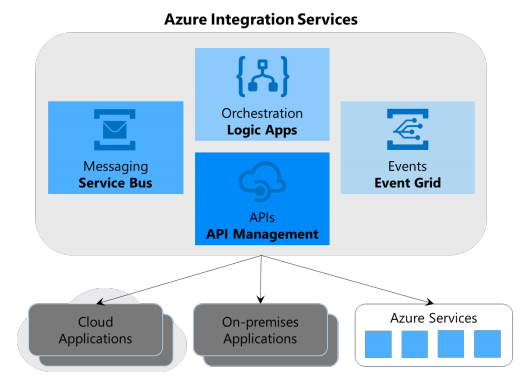
Azure Integration Services overview diagram from Microsoft white paper


Azure Integration Services is a set of cloud services for enterprise integration:
  • API Management: an API service that handles requests volume, security control, responses caching and monitors usage patterns.
  • Logic Apps: serverless technology to create multi-steps processes to connect two or more applications, for system-to-system or user-to-system workflows.
  • Service Bus: an enterprise message queueing system to allow non-blocking interactions between application components.
  • Event Grid: a highly scalable service that invokes receivers when a particular event has occurred, removing the need for applications polling.

Azure Integration Services lets you connect cloud and on-premises applications, but the real value is when all core services are used together. As an example, your customers submit orders through your Web site, going through the Service Bus they then generate an Event Grid which triggers a Logic App to execute your business process. This could involve querying your CRM, updating on-premises inventory and creating transactions on SAP. By leveraging the Azure Integration Services, your IT team could save a lot of development time and simplify maintenance.

Why automate workflow?


Going back to our workflow and process challenges, we will focus on Power Automate and Azure Logic App. So how can Power Automate or Azure Logic App help your workflow processes?


Use CasePower Automate / Azure Logic App Example
Decision maker has to wait for a report.Update Power BI dataset when a file is updated.
Resource managers need to follow up constantly.Track Microsoft Forms responses in Sharepoint and send notification.
Process manager overwhelmed by approval threads.Use approval email workflow to redirect to proper channel.
Administrative assistants with too many email requests to organize.Filter and save email content or attachments automatically into Sharepoint or organized folders.


These are just a few basic examples of the functionalities available. More advanced features include:

  • Track Tweets about a particular keyword and stream their sentiments to Power BI for analysis.

  • Open a bug in Azure DevOps and get an email notification whenever a rising trend in error traces is detected.

  • Request approval from your team members whenever a new document is uploaded in Sharepoint, via Teams.

  • Send an approval request when a purchase order is created in Microsoft Dynamics 365 Business Central, and on approval, take additional actions on that purchasing document.

  • And many more possibilities you can create with the available connected services.


How to design a workflow?


You can design your workflow from scratch or find a suitable predefined template among the vast collection offered by Power Automate. They are designed mainly for desktop applications, such as Productivity or Data collection. This is the recommended method to start your workflow; find the closest to what you wish to accomplish, then you can modify the generated template with the user-friendly designer, with simple clicks and edit.


Power Automate offers many pre-defined templates


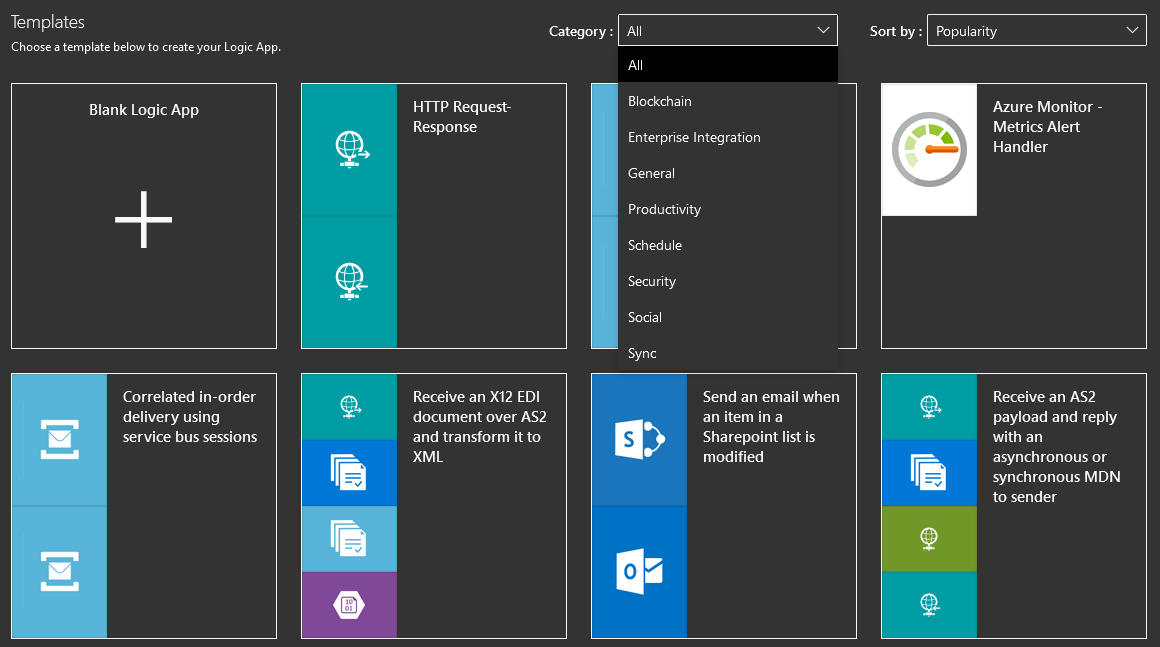
Azure Logic App also provides its own set of pre-defined templates, though the options are limited and primarily designed for technical processes, such as Enterprise integration and Schedule. However most if not all, connectors available on Power Automate can also be found on Azure Logic App.


Azure Logic App provides its own set of templates, more technical-oriented


If you create a custom workflow on Power Automate, it can be exported to a JSON file which can then be imported into Azure Logic App. This is a great way to migrate a custom workflow created by a Business user; for example, to be evolved into a more elaborate process and then shared with the team.

Every flow starts with a trigger, either instant or scheduled, followed by a series of actions. Triggers and actions, may or may not establish a connection to a data source. Examples of triggers include, a file created or HTTP request received, a record created in SQL Server or Dynamics 365. Triggers can also be initiated from other vendor products such as Salesforce, Bitbucket or Gmail and more.

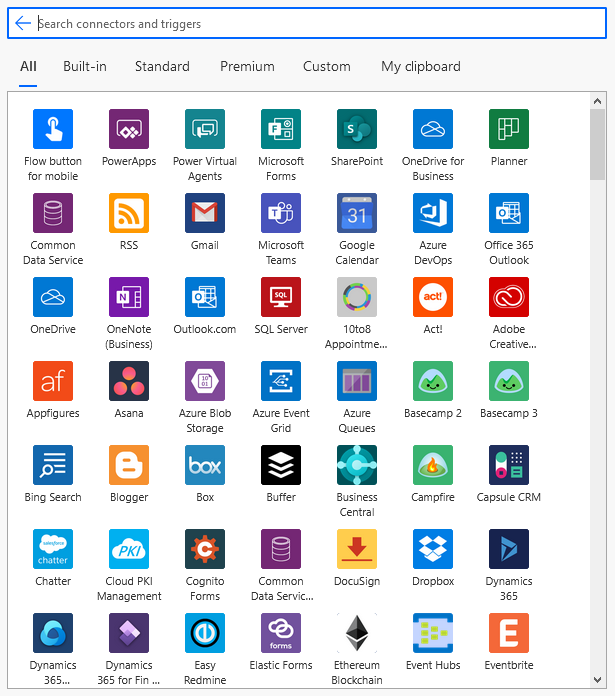
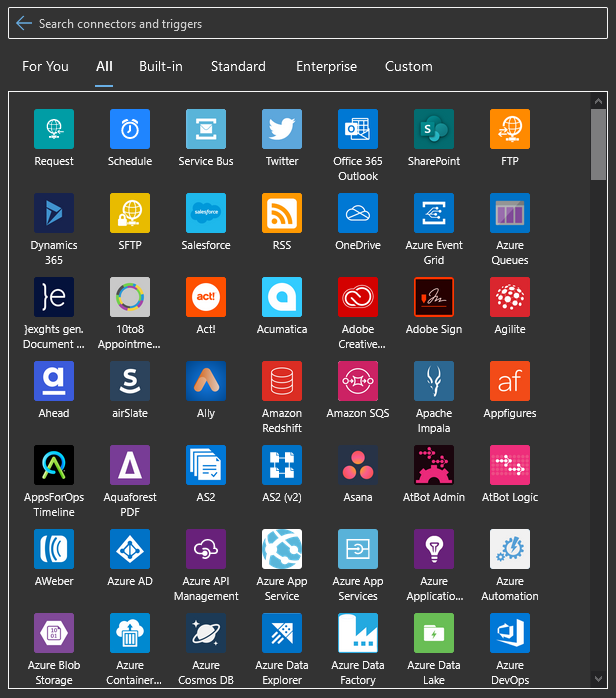
Both platforms offer similar connectors, triggers and actions.


A partial view of the supported connector and triggers in Power Automate


A partial view of the supported connector and triggers in Azure Logic App


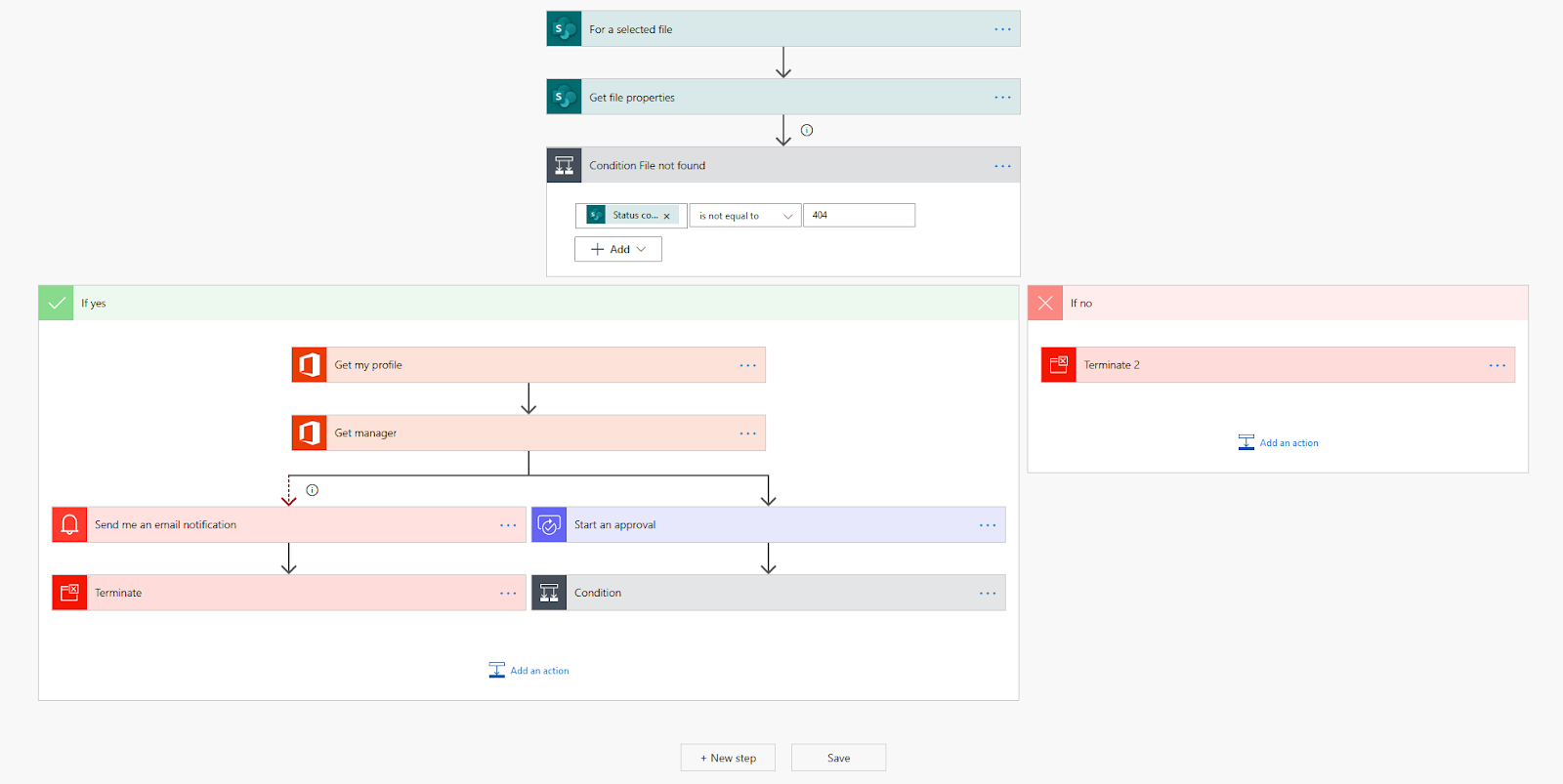
The designer interface on both platforms is very user-friendly and identical in use, as you can see below. You edit a trigger or action by simply clicking on the box which expands with the properties available for customization. Additional settings can be updated by clicking on “...”. To insert new actions, click on the “(+)” or “New Step” button.


Workflow example in Power Automate, the designer is similar to Azure Logic App


To test the execution of your workflow on Power Automate, click on “Test”; on Azure Logic App, click on “Run”. In both cases, this action will execute your workflow.


Some tips for designing workflow:

  • Your workflow must be in Enabled state to be executed.

  • Always disable your workflow after design and test; this will ensure your recurring trigger does not automatically start your process or that it remains offline.

  • Azure Logic App keeps a history of every version you saved, so you can always go back to a previous version in case of accidental changes. This is not available on Power Automate, so remember to use the “Save As” feature to make backups.

  • Both platforms allow you to export the template to a JSON file, although some restrictions may apply to Power Automate.


The exported JSON template is a great option for IT professionals and developers to leverage ARM templates automation. By using Azure CLI or PowerShell, you can automate the creation of your Azure resource, along with Logic App.


What about on-premise connectivity?


Many enterprises may still be running an hybrid architecture, with part of their servers and databases still hosted on-premise, while new services are created on Azure. If your Power Automate or Azure Logic App requires a connection to data located on-premise, you do have a few options:

  • Create a Site-to-Site Virtual Private Network (S2S VPN) that establishes a connection between two endpoints: a VPN device on the on-premise network and an Azure VPN gateway on the Azure VPN. Traffic will travel over the public internet.

  • For better security and reliability, use ExpressRoute, which is a direct connection between your organization and Microsoft’s network. Traffic does not travel over the public internet.

  • To keep your architecture simple, you can install an on-premises data gateway. This will handle encrypted communication between the on-premises data gateway and Azure gateway cloud service, allowing Power Automate and Azure Logic App to access your organization’s data sources.


Power Automate or Azure Logic App?


If you are a productivity user, go with Power Automate; the Power Platform will manage all the required Cloud resources. You do have the option to share a workflow with others, granting them access to edit and execute your template.


If you are an IT professional or developer, the preferred solution is Azure Logic App. The benefits include:

  • Managed versioning of your Logic App on Azure portal.

  • Development using Visual Studio or Visual Studio Code.

  • JSON templates and parameter files for customization.

  • Deployment automation with Azure CLI or PowerShell.


And because you will be developing the solution for other users, the deployment model on Azure allows you to centralized the maintenance of your application without granting users access to modify your workflow.


Power Automate workflow is suitable for individual users who need their own custom processes. Azure Logic App is for workflow shared by multiple users or complex processes maintained by IT. This decision is also driven by their specific pricing model.


  • Power Automate license by user: $15 USD per user per month.

  • Azure Logic App is charged by execution: $0.000025 USD per action, and $0.000125 USD per Standard Connector.


Follow the links under References for more details on their pricing. Unless you have few power users who are creating a lot of workflows on Power Automate, Azure Logic App will be the most economical solution.


This article was an overview of Microsoft Power Automate and Azure Logic App, offering a brief comparison. I encourage you to log on Microsoft Flow and Azure Logic App to try them out and explore their potential for automation of your business.


Note

There is a bug caused by the workflow designer interface with the action “Create HTML table”. The property “Columns” is reset to “Automatic” each time it is open in the designer. If your workflow does not use the default value for this action property, you will need to edit each time you modify the workflow in the designer UI.


- Eric Chan


References

What is Common Data Service?

https://docs.microsoft.com/en-us/powerapps/maker/common-data-service/data-platform-intro


Common Data Model

https://docs.microsoft.com/en-us/common-data-model/


About Common Data Service

https://docs.microsoft.com/en-us/power-platform/admin/wp-cds-for-apps


Azure Integration Services white paper

https://azure.microsoft.com/mediahandler/files/resourcefiles/azure-integration-services/Azure-Integration-Services-Whitepaper-v1-0.pdf

On-premises data gateway architecture

Power Automate pricing

https://canada.flow.microsoft.com/en-us/pricing/

Logic Apps pricing

https://azure.microsoft.com/en-us/pricing/details/logic-apps/


How to run dbt on Docker

  How to configure a local dbt development environment for free In this article, we will learn how to configure a local dbt development envi...